Desktop
Use Scanz 4 Desktop for multi-window scanning, saved layouts, and multi-monitor trading workspaces.
Scanz 4 Desktop is built for traders who want Scanz running like a multi-window trading workstation. It uses the same scans, filters, signals, news, alerts, and watchlists as the web platform, then adds native windows, saved layouts, window linking, Decision Support windows, and multi-monitor support.
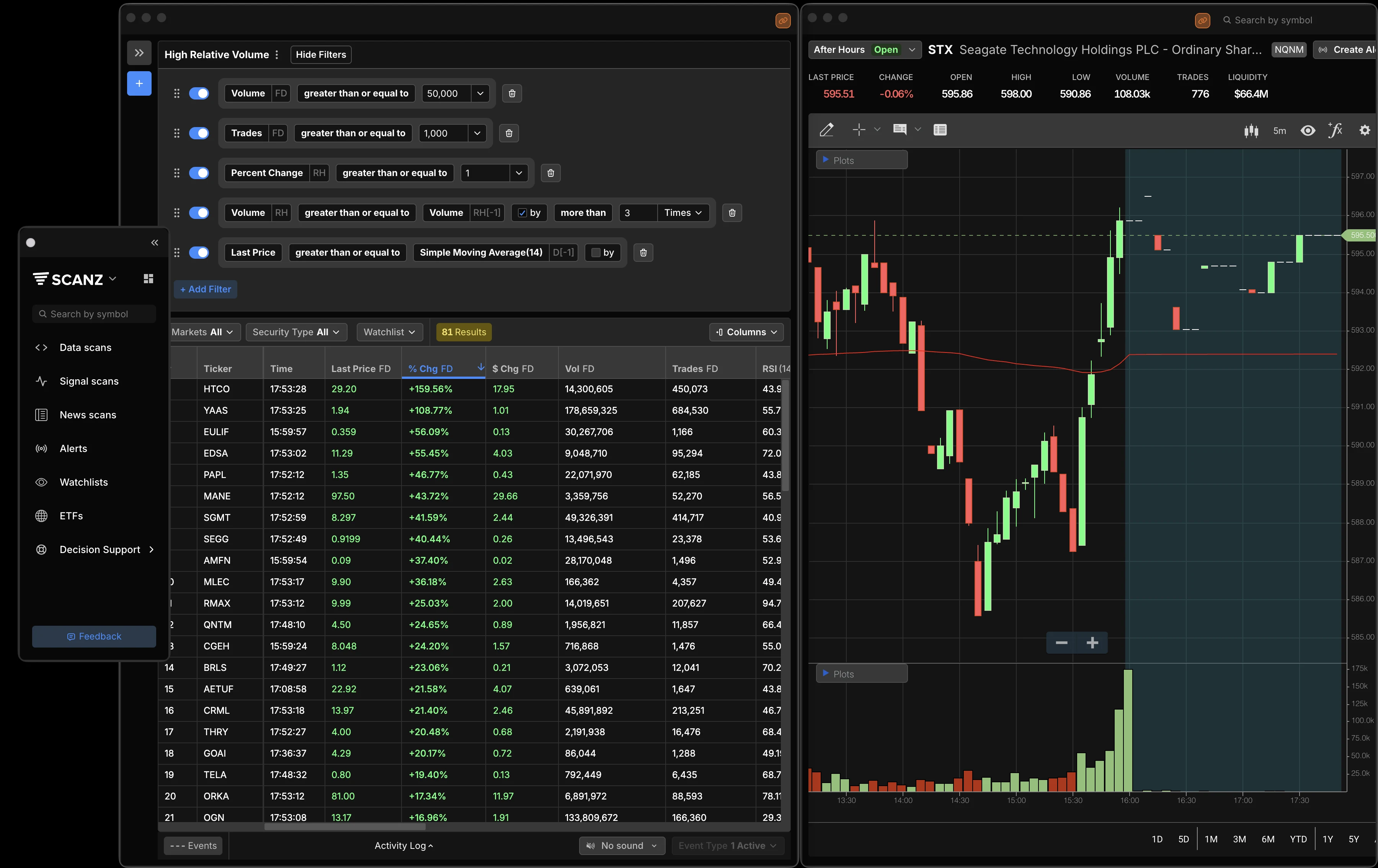
When to Use Desktop
Use Scanz Desktop when you need more than one view open at the same time.
| Need | Why Desktop Helps |
|---|---|
| Multiple scans at once | Keep different Data scans open side by side instead of switching browser tabs |
| Multi-monitor setups | Place scans, watchlists, signals, news, charts, and other windows across screens |
| Repeatable workspaces | Save a layout once, then reload the same window arrangement later |
| Symbol-focused workflows | Link windows so related modules stay in sync as you move from symbol to symbol |
| Decision support | Keep charts, Montage, Level 2, and Times & Sales windows beside your scans |
Scanz Web is still useful for quick access from a browser. Desktop is the better choice for active trading sessions where screen real estate, layout memory, and simultaneous monitoring matter.
Desktop vs. Web
| Area | Web Interface | Desktop App |
|---|---|---|
| Access | Runs in a browser | Runs as a native macOS or Windows app |
| Windows | One main view per browser tab | Multiple independent Scanz windows |
| Layouts | Browser tabs and browser window placement | Saved Scanz layouts for one or more monitors |
| Shared data | Saved scans, filters, alerts, watchlists, and account data | Same saved scans, filters, alerts, watchlists, and account data |
| Best for | Quick checks, single-screen use, browser access | Trading workstations, several scans, multi-monitor monitoring |
If you already know the Web Interface, the Desktop app will feel familiar. The difference is how much of Scanz you can keep visible at once.
Opening Windows
The Navigator is the desktop starting point. Use it to open Data scans, Signal scans, News scans, Alerts, Watchlists, ETFs, and Decision Support.
Each item opens as its own desktop window. You can keep several modules open at once, resize them, and move them to whichever monitor or screen area fits your workflow.
Common desktop setups include:
- A gapper scan, a low-float scan, and a high relative volume scan open together
- A Data scan beside a Watchlist so you can compare broad market movement with names you already track
- Signals and News windows open below active scans so fresh events are visible without changing tabs
- A symbol-focused layout where scanner, chart, Level 2, and news windows stay close together
Decision Support
Decision Support is the Desktop area for symbol-focused analysis. Use it when a scan, signal, news item, or watchlist row gives you a ticker and you want supporting context without leaving your workspace.
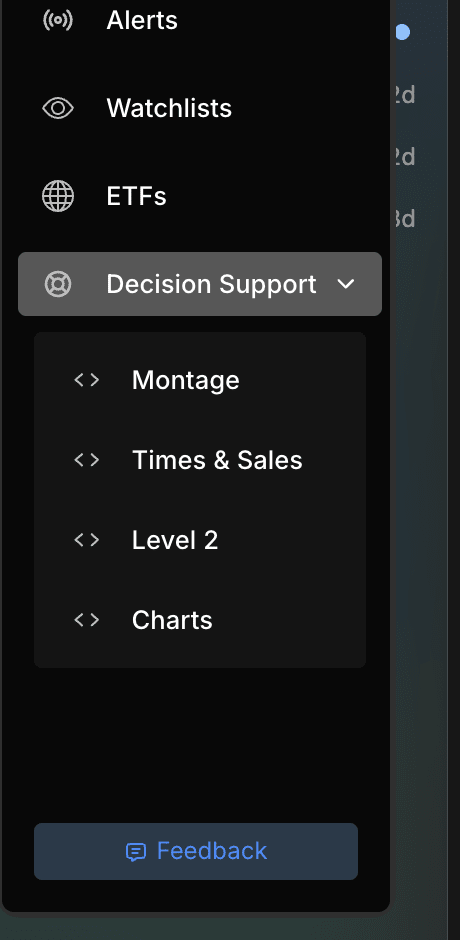
Decision Support includes four window types:
| Window | What It Shows | When to Use It |
|---|---|---|
| Montage | A combined symbol workspace with quote data, chart, news, filings, prints, and Level 2 context | Use this as the main research window for a symbol you are evaluating from a scan |
| Times & Sales | Real-time trade prints for one symbol, including time, price, size, and exchange/venue context | Use this to watch how trades are flowing during fast moves |
| Level 2 | Bid/ask depth, market maker activity, and order book changes | Use this to evaluate liquidity, spread, and visible support or resistance |
| Charts | A dedicated chart window with timeframe, view, studies, and drawing controls | Use this when the chart deserves its own window or monitor |
Open Decision Support windows from the Navigator. Each window has a symbol search field in the title bar, so you can type a ticker directly. You can also use window linking to keep Decision Support windows synchronized with a scanner, watchlist, or other symbol-driven window.
Montage is the broadest Decision Support view. It is useful when you want one window that combines quote data, a chart, news and filings, and trade/order flow context. Times & Sales, Level 2, and Charts are more focused windows for traders who prefer separating those views across a layout.
Working With Multiple Scans
Desktop is especially useful when one scan cannot answer the whole trading question.
For example, a morning momentum layout might keep these windows open:
| Window | What It Monitors |
|---|---|
| Pre-market gap scan | Stocks already moving before the open |
| Regular-hours gainers scan | Stocks continuing after the opening print |
| Low-float scan | Names where float structure can change how a move behaves |
| Signals | New highs, new lows, or crossover events |
| Watchlist | Names you want to keep separated from broad scan results |
Use the Scanner guide to build the scans, then use Desktop to view the important ones together.
Saving Layouts
Layouts save your Desktop workspace: which Scanz windows are open, where they are placed, how large they are, and which link group they belong to. This is the main Desktop feature that does not exist in the browser version.
To save a layout:
- Open the windows you want in the workspace.
- Move and resize each window for your screen or multi-monitor setup.
- Link any windows that should share ticker context.
- Open the Layouts panel in the Navigator.
- Click Create Layout.
To load a layout, open Layouts and click the saved layout name. Scanz closes the current Desktop content windows and restores the windows saved in that layout.
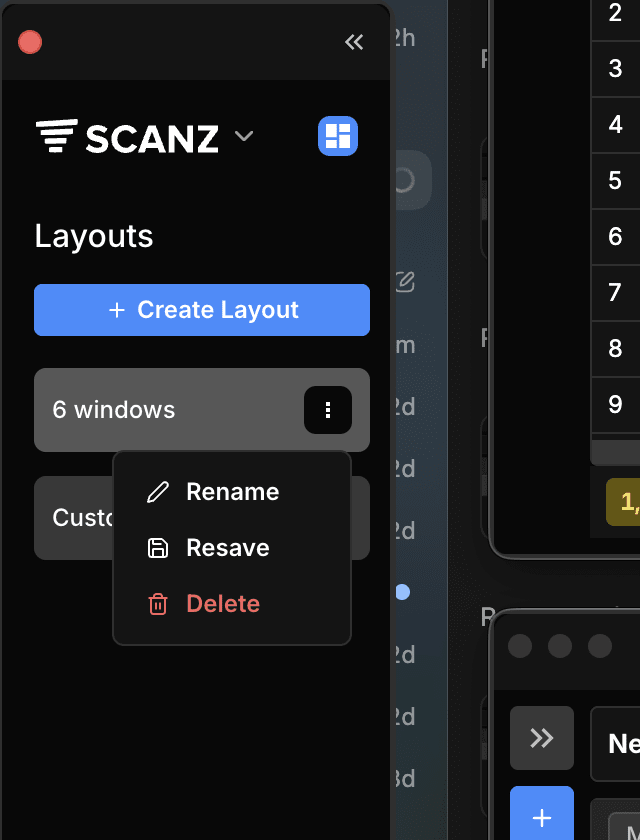
Use the three-dot menu on a layout to manage it:
| Action | What It Does |
|---|---|
| Rename | Changes the layout name so it is easier to recognize later |
| Resave | Replaces the saved layout with your current open windows, positions, sizes, and link groups |
| Delete | Removes the saved layout from the Layouts list |
A saved layout stores the window setup, not the underlying resources. Deleting a layout does not delete scans, alerts, watchlists, or saved news scans.
Good layouts are task-specific. A pre-market layout, regular-hours momentum layout, news-monitoring layout, and end-of-day review layout usually work better than one oversized workspace trying to do everything.
Updating a Layout
Update a layout when your workflow changes:
- Load the layout.
- Add, close, move, resize, or link windows until the workspace is correct.
- Open the layout’s three-dot menu.
- Choose Resave to overwrite the saved layout with the current workspace.
If you want to keep the original layout and save the adjusted workspace separately, use Create Layout instead.
Window Linking
Desktop windows can be linked so related modules stay in sync. This is useful when you want to move through symbols in one window and have supporting windows follow the same ticker.
The chain-link icon appears in the title bar of Desktop content windows. Linking uses color groups. Windows assigned to the same color group share ticker context with each other.
To link windows:
- Open the windows that should work together, such as a Data scan and Montage.
- Click the chain-link icon in the first window.
- Choose a color.
- Click the chain-link icon in each related window.
- Choose the same color for each window in that workflow.
- Click a symbol in the source window. The linked windows update to that ticker.
Use separate colors for separate workflows. For example, one monitor can use a blue scanner-to-Montage group while another monitor uses a green watchlist-to-chart group.
Use linking when you want a tighter research flow:
- Click a symbol in a scan and keep supporting windows focused on that symbol
- Pair a scanner window with Montage, chart, Level 2, Times & Sales, or news windows
- Keep verification windows synchronized while you move through scan results or watchlist symbols
If a window should stop following a group, open the chain-link control again and remove it from the group.
Best Practices
Keep each layout focused. A layout should answer a specific trading question: pre-market discovery, regular-hours momentum, news monitoring, or watchlist review.
Use fewer windows than your monitors allow. More windows are not always more information. Prioritize the views you actually react to.
Separate discovery from verification. Put broad scans in one part of the screen and symbol-specific windows in another. That keeps scanning from crowding out analysis.
Name layouts clearly. A saved layout called “Pre-market momentum” is easier to trust than a generic layout name you have to inspect every morning.
Troubleshooting
A saved layout is not opening the way you expect Open the layout, adjust the windows, then choose Resave from the layout menu or create a new layout. If your monitor setup changed, the old placement may no longer fit the same way.
A window is off screen Open the module again from the Navigator or load a simpler layout. If you changed monitors, create a fresh layout for the current screen setup.
Desktop feels crowded Split your workflow into multiple layouts. For example, use one layout for pre-market discovery and another for regular-hours monitoring.
A scan shows no results Check the same causes you would in the web platform: restrictive filters, the wrong market session, or closed-market conditions. See Scanner troubleshooting for scan-specific checks.
You do not see the desktop download The Desktop app is part of the Pro platform experience. In the web platform, open the Scanz app menu and choose Download Desktop.
Related Docs
- Web Interface - Learn the shared Scanz navigation and interface patterns
- Scanner Guide - Build and manage Data scans
- Signals Guide - Monitor event-based scan results
- News Guide - Filter headlines alongside your scans
- Watchlists Guide - Track saved groups of symbols