Another massive list of meaningful updates for September. We are on a mission to craft the most innovative trading platform ever built. We are just getting started… October is already shaping up to be even bigger!
The Data Scanner, Signal Scanner and News Scanner now share one toolbar. The left side always shows which scan you’re looking at. The right side holds the controls that change what the scan shows, followed by a button to create a new one. Once you know it on one page, you know it on all of them, in the web app and the desktop app alike. Nothing else has moved: the row under the toolbar, with Exchanges, Type, the data date, the results count and Add column, works as it did before.
On the left, everything about the scan you’re looking at:
- Scan name. Click the name of the scan to see all of your scans and switch to another one.
- The ⋮ menu next to the name lets you set the scan as your default (the one that opens first), rename it, duplicate it or delete it. Built-in scans can’t be edited, so on those the menu offers Duplicate, which gives you your own copy to change.
- Tabs. Switch this on to keep several scans open at once. Every scan you open gets its own tab along the top, and one click moves you between them. With tabs on, each tab carries its own ⋮ menu. Tabs is one setting for every scanner: switch it on or off on any page and it changes everywhere. You’ll also find it in Settings, under General.
- Active filters shows how many filters are shaping your results right now. Click it to hide the filters and give the results more room, and click it again to bring them back. It only counts filters that are switched on and completely filled in. A filter you’re still setting up, or one you’ve switched off, isn’t counted, and with nothing switched on it shows 0.
- Watchlist narrows your results to the symbols in one of your watchlists. Pick a list and the results update straight away. The list’s name then appears next to the scan name, so you always know why the results look the way they do. While a watchlist is applied, the Exchanges filter is switched off, because the watchlist already decides which symbols are included. Choose None to scan the whole market again.
- Create data scan starts a new scan from scratch. On narrower windows it shortens to Create, and then to a + icon.
The Signal Scanner uses the same toolbar, with two buttons suited to signals:
- Add signal opens the list of signal types, such as New High, Crossover, Relative Volume and Block Trades. Pick one to add it to the scan. It isn’t available on built-in scans, which can’t be edited.
- Active signals shows how many signals are switched on, and opens or closes the list of signals. Like Active filters, it only counts signals that are switched on and fully set up.
- Create signal scan starts a new signal scan.
Each signal in the list has its own controls too:
- a switch to turn it on or off (a switched-off signal dims, so you can tell it apart at a glance);
- its own filter count, which opens just that signal’s filters;
- a pencil to change its settings, and a bin to delete it.
The News Scanner works exactly the same way as the Data Scanner: Active filters, Watchlist and Create news scan sit in the same places and do the same things. Watchlist has moved up into the toolbar here too, from the row below it. Applying one narrows the headlines to news about the symbols in that list, and switches off the Exchanges and Type filters while it’s applied.
The built-in All News scan can’t be edited, so opening its filters shows a short note with a button to create a news scan of your own.
Watchlists follows the same layout, with Create watchlist on the right and Add symbols just above your list.
Click the double arrow next to the Scanz logo to hide the page headers and give your results the whole screen. Your scan’s name moves up into the top bar, the column headers sit right underneath it, and the sidebar folds away. Click the arrow again to bring everything back.
Compact Mode works on the Data Scanner, Signal Scanner, News Scanner, Alerts, Market Sessions, Watchlists and ETFs, in the web app at desktop size and in the desktop app. Your choice is remembered and follows you across windows.
Discover now has watchlists as well as scans. Choose Watchlists under Templates for to browse 16 lists across Indexes, Sectors and Themes. Open any list to see what’s inside, then click Use template to copy it into your own watchlists, where it’s yours to change.
You can also get there from an empty Watchlists page: click Start with a template.
Adding symbols to a watchlist no longer has to happen one at a time. Click Add symbols and paste a whole list, with the symbols separated by commas, spaces or new lines, so a column copied from a spreadsheet works too. Scanz tells you which symbols it didn’t recognize and which were already on the list.
Right-click any row in your results and choose Hide for today or Always hide symbol, and it drops out of your results. It works in the Data, Signal and News Scanners, Watchlists, Alerts and Market Sessions. Changed your mind? The toast that appears has an Undo.
While anything is hidden, a Hidden count appears next to your filters. Click it to unhide a symbol, show the hidden rows for a moment, or open Manage hidden symbols, where you can also paste a list of symbols to hide for today or for good.
Export CSV saves a whole table to a spreadsheet file you can open in Excel, Google Sheets or Numbers: every row, not just the ones on screen, with the same columns in the same order. Click the download icon at the right end of the row above the table, just before Add column. You’ll find it on the Data Scanner, Market Sessions, the News Scanner, Watchlists and ETFs.
A big scan can take a few seconds to gather. While it does, the icon turns into an X so you can cancel, and if an export fails, the message has a Try again button. See Exporting to CSV in the docs for everything the file includes.
In the desktop app, the Chart and Level 2 windows now open each symbol in its own tab. Symbols sent from a linked scan arrive as new tabs, and the + at the end of the tab strip opens any ticker. Each chart tab keeps its own timeframe and studies, so you can flip between setups without redrawing anything.
Tabs are on by default. You can switch them off in Settings, under General.
Scanz now has its own notifications feed, so you can see what’s new without leaving the app. On the web, open your account menu (your name at the bottom of the sidebar) and choose Changelog. In the desktop app, click the bell in the launcher. A badge tells you when there’s something you haven’t seen yet.
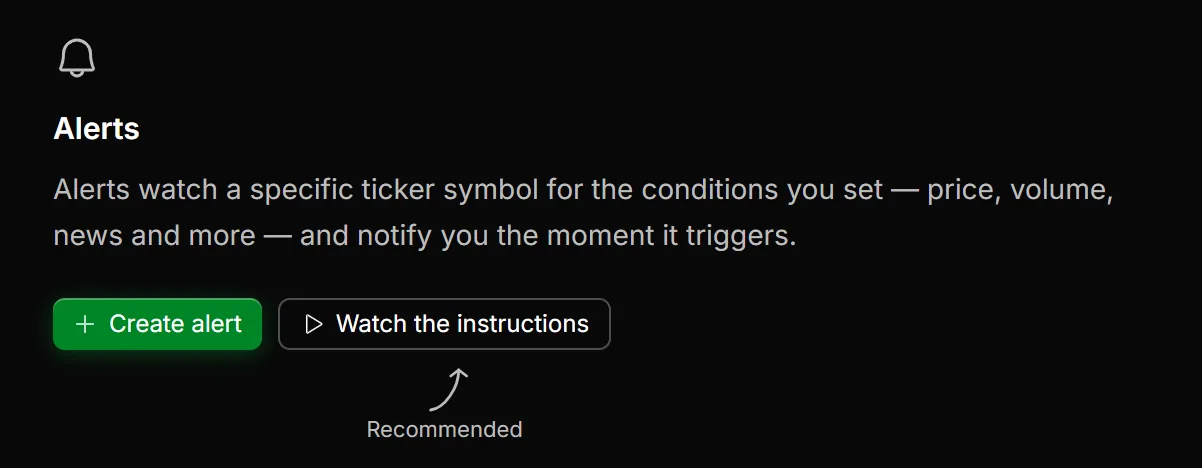
The getting-started screens on the Data Scanner, Signal Scanner, Watchlists and Alerts now have a Watch the instructions button that plays a short walkthrough of that page. On the News Scanner, you’ll find a Watch the tutorial link at the end of the filter row.
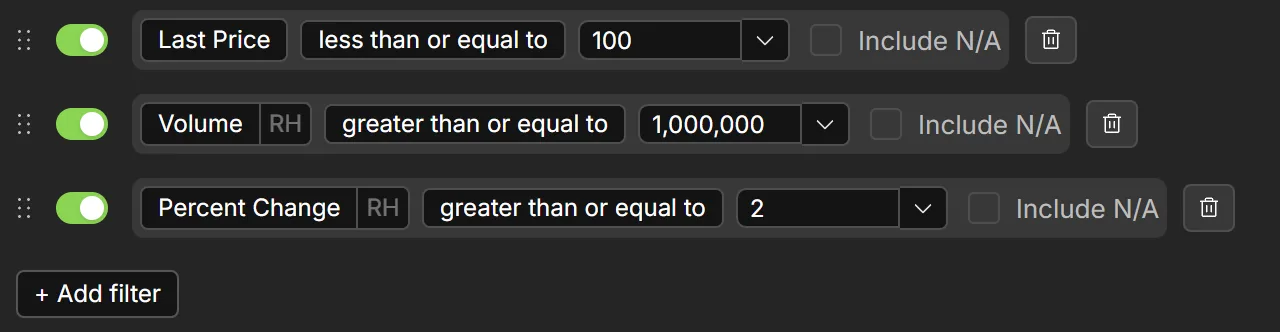
Filters now have an Include N/A option. Tick it and symbols that have no value for that column pass the filter instead of being dropped. It’s handy for newer listings, or for columns that aren’t filled in for every symbol. You’ll find it on filters in the Data Scanner, the News Scanner and alerts.
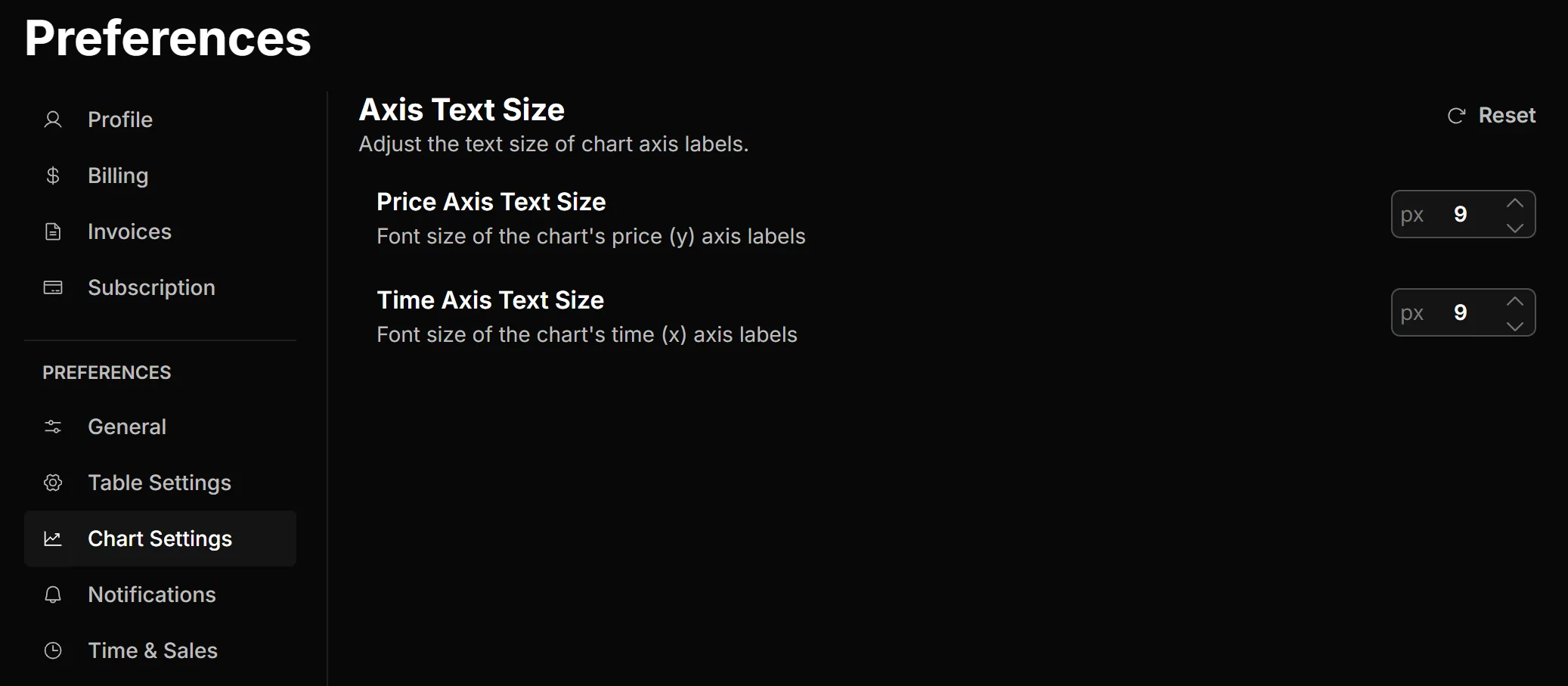
You can now choose the text size of your chart’s price and time axis labels. Open your account menu, choose Preferences, then Chart Settings. The default is now a little smaller, 9 px, and Reset takes you back to it.
On a phone, you can now choose whether the chart shows its candle info panel. Tap Chart Options above the chart, then Preferences, and switch Candle info panel on or off.
- Tabs remember where you left them. Your open tabs are saved for each window in the desktop app and each browser tab on the web, and come back after a restart or reload.
- Market status in the top bar. The current session, an Eastern-time clock and a countdown to the next session now sit in the top bar of the web app.
- Market Sessions is now where the web app opens, and it follows the live session through the day.
- Discover scan cards now show a scan’s full details, including its rules and when it runs, before you use it.
- The scan picker shows how many scans you have, with a button to create a new one, and remembers the scan you last used on each page.
- Getting-started screens have been refreshed on every scanner, and Alerts now shows Active and Triggered as tabs.
- All News is listed first in the News Scanner’s picker and clearly marked as read-only, with a one-click way to create your own news scan.
- Faster. Results you’ve already loaded appear straight away when you come back to a tab, change a filter or add a column, instead of a loading spinner. Scanz also starts up and moves between pages faster.
- Instant updates. Creating, renaming or deleting a scan or list now shows up in your tabs, your picker and your other windows immediately.
- A cleaner look. Pop-up messages have been redesigned, filter rows and signals take up less room, a switched-off signal dims, and a filter that isn’t finished yet is outlined in gold rather than red.
- Closed-session rows in your results are no longer tinted red, since the session is already shown above the table.
- Refreshed icons and colors across the sidebar and the desktop launcher, a refreshed light theme, and a redesigned account menu. In the desktop app, the Monitor section is now called Track, to match the web app.
- Activity Log, the Signal Scanner and the News Scanner keep receiving events, and playing their sounds, while their browser tab is in the background.
- The live connection no longer drops mid-session and needs a page refresh to recover.
- The desktop app no longer gets stuck on “Creating application”, and asks about unsaved changes before it quits.
- Window layouts in the desktop app save and restore reliably again, and window headers show the right ticker.
- The Charts window in the desktop app no longer shows an error screen instead of the chart.
- Clicking a color swatch to link a desktop window works again, and launcher submenus respond to clicks on Windows.
- Creating or duplicating a scan while the open one has unsaved changes now asks you to save or discard first, instead of failing.
- Scans no longer lose conditions when you switch between them quickly, appear empty after a reload, or empty themselves if renamed while saving.
- Switching every signal off no longer brings back the “Add your first signal” screen.
- The Signal Scanner’s default scan no longer gets stuck on New Highs, and its Active signals and filter counts are accurate.
- “Prev. Day” data no longer skips a trading day.
- Removing every symbol from a watchlist now saves it as empty.
- News scans with a watchlist filter no longer come back with no results.
- Exported CSV files have clean column headers, with the Ticker column in the right place.
- The ETFs picker shows list names instead of internal codes.
- Tooltips no longer block clicks on what’s underneath them, dialogs can’t be submitted twice, and resizing panels no longer shows errors.
- Discover’s category tabs are readable on light themes, and hitting your plan’s scan limit from Discover now shows the upgrade prompt.
- The Montage “Add to watchlist” menu no longer opens behind the chart.