Always on Beta
Keep a saved Data Scan or Signal scanning on Scanz's servers while the app is closed, 4 AM to 8 PM ET, so everything it found is waiting when you come back.
Always on keeps a saved scan running on Scanz’s servers when Scanz isn’t open. Close the app, shut the laptop, go to work: the scan keeps finding matches from 4 AM to 8 PM ET, and when you open it again, everything it found while you were away is in the results.
It’s for the scans you’d hate to miss a hit on: a pre-market gapper scan that starts at 4 AM while you’re asleep, a breakout Signal you want covered during a meeting, a volume scan you check once at lunch.
Beta: this feature is in beta and is being turned on for accounts gradually.
Where to find it
The Always on chip sits next to Notify:
- Signal scans - in the results toolbar of the Signal Scanner
- Data Scans - in the toolbar of the Activity Log at the bottom of the Data Scanner
News scans have no Always on chip. A saved News scan can still notify you by Push or Email while Scanz is closed - see Scan notifications.
In the scan picker, an Always on scan carries a broadcast icon, and so does its tab.
Turning it on
- Open a saved Data Scan or Signal scan.
- Click Always on. The chip lights up once Scanz’s servers confirm the scan is running.
- Click it again to turn it off.
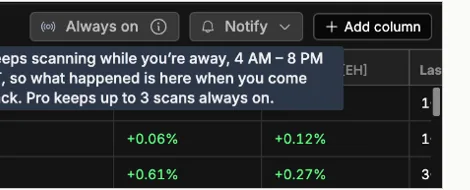
Hover the chip to see what it’s doing. When it’s on, the tooltip reads “Keeps scanning while you’re away, 4 AM – 8 PM ET, so what happened is here when you come back.”, followed by anything the server has noticed about the scan and the time its rows are kept until.
Always on never turns on by itself - it’s always your choice. The one other way to turn it on is turning on Push or Email in the scan’s Notify menu: those are sent from Scanz’s servers, so they turn Always on on for that scan (see Scan notifications).
Prebuilt and unsaved scans
Always on works on scans you’ve saved as your own. On an unsaved scan the chip says “Save this scan to keep it scanning while you’re away.” A prebuilt scan has to be saved as your own copy first - customize it, save it, then turn Always on on for the copy.
What you see when you come back
Open an Always on scan and the rows it found while you were away are merged with the live ones, in time order and without duplicates, under a Collected earlier header with the number of results.
A scan that isn’t Always on shows only what it found while it was open, under a header such as “Earlier session 11:33 AM – 12:35 PM ET · ended: view hidden or closed”.
Scanning runs from 4 AM to 8 PM ET. Outside those hours an Always on scan doesn’t collect anything.
Limits
| Pro | Up to 3 scans Always on at once (Data Scans and Signals together) |
| Starter | Always on is locked. The chip shows a lock; clicking it offers Upgrade to Pro |
| Hours | 4 AM to 8 PM ET |
| Rows per scan | 10,000 a day. At the cap the scan keeps running and drops its oldest rows, so you always have the newest 10,000 |
| How long rows are kept | Until 3:55 AM ET, when the day’s rows are cleared. The chip’s tooltip shows the exact time |
There’s no history across days and no replay of a time the scan wasn’t running: Always on covers the current trading day from the moment you turn it on.
At the limit of 3
If all 3 of your Always on slots are in use and you turn on a fourth, Scanz shows a dialog: Pro keeps 3 scans always on. It lists the scans using your slots - each with its type (Data Scan, Signal or News Scan), when you last opened it, and whether Push or Email is on - with the one you opened longest ago first. Click Turn off next to one, and Scanz turns that one off and turns on the scan you asked for in one step.
A saved News scan with Push or Email on also uses one of the 3 slots, because Scanz’s servers watch it for you.
At the row cap
When a scan reaches 10,000 rows for the day, At the cap of 10,000 rows appears beside the chip: “the oldest rows are dropped as new ones arrive. Narrow the scan to keep more.” The scan keeps running. Before that, the tooltip warns when the scan is nearly at the cap.
What the chip tells you
| Chip | Meaning |
|---|---|
| Highlighted | Always on is running |
| Plain | Off - click to turn it on |
| Lock | Not on your plan (Starter), or more Always on scans than your plan allows after a plan change |
| Warning icon | The server noticed something, or the scan stopped. Hover for the reason |
| Pause icon | Paused because the scan hasn’t been opened in a long time. Click to turn it on again |
The warnings you may see in the tooltip include:
- Nearly at today’s row cap - past it the oldest rows are dropped.
- Firing like a runaway scan; may be turned off - the scan matches so often that the server may stop it. Tighten its filters.
- Turns off soon unless it is opened - nobody has opened the scan in a long while. Open it to keep it on.
- Stopped - with the reason, for example when the scan’s saved filters no longer work. Fix the scan and turn Always on on again; Scanz checks the scan as it is now.
Always on vs. background tabs
They solve different problems:
- Background tabs keep the scanner tabs you aren’t looking at running while Scanz is open, on Starter and Pro alike.
- Always on keeps a saved scan running on Scanz’s servers, whether Scanz is open or closed, on Pro.
An Always on scan keeps collecting even when its tab is stopped, so its tab isn’t marked as stopped.
Troubleshooting
| Issue | Cause | Solution |
|---|---|---|
| No Always on chip | Not on for your account yet, or you’re on the News Scanner | Always on is in beta and being turned on gradually; News scans use Push or Email instead |
| Chip shows a lock | Starter plan | Upgrade to Pro for 3 Always on scans |
| Chip can’t be clicked | The scan is unsaved or prebuilt | Save the scan (or your own copy of a prebuilt) first |
| A dialog asks which scan to turn off | All 3 Pro slots are in use | Turn one off in the dialog, or close it |
| Nothing collected overnight | Always on runs 4 AM to 8 PM ET only | That’s expected - it starts again at 4 AM ET |
| Yesterday’s rows are gone | Rows are cleared at 3:55 AM ET | Export the results to CSV before then if you want to keep them |
Related
- Scan notifications - get a push or an email when an Always on scan finds a match
- Background tabs - keep open tabs running while Scanz is open
- Signal Scanner and the Activity Log
- Plans and limits