Background tabs Beta
Scanner tabs you aren't looking at keep scanning while Scanz is open, up to 10 running tabs per window, so switching tabs never leaves a gap in your results.
With background tabs, the scanner tabs you aren’t looking at keep scanning while you work in another one. Switch from your gapper scan to a Signal and back, and the gapper scan’s results are complete - nothing was missed while it was out of view, and it doesn’t reload when you return.
There’s nothing to turn on. It works on Starter and Pro alike, for as long as Scanz is open. To keep a scan running when Scanz is closed, use Always on.
Beta: this feature is in beta and is being turned on for accounts gradually.
How it works
- Open scanner tabs across the Data Scanner, Signals and News as usual.
- Every open tab keeps collecting results while another tab is selected.
- Each Scanz window runs its own tabs.
- When Scanz closes, its tabs stop. Nothing is collected while the app is closed unless the scan is Always on.
When a tab stops
So that forgotten tabs don’t run all day, a tab you aren’t on stops in four cases:
| When | What happens |
|---|---|
| More than 10 running tabs in one window | At most 10 tabs run per window. Starting one more stops the tab you used longest ago |
| Not opened for 4 hours | A tab you haven’t looked at for 4 hours stops |
| 8 PM ET | Every tab except the one on screen stops for the night |
| 4 AM ET | Every tab except the one on screen stops, so nothing from the day before runs into the new trading day |
The tab you’re looking at never stops this way.
How a stopped tab looks
A stopped tab is marked in the tab strip. Hover the mark to see why it stopped:
- “Waiting. 10 tabs in this window are running. Select this one to start it; its results start fresh.”
- “Waiting. Not opened for 4 hours. Select this one to start it; its results start fresh.”
- “Waiting. Tabs you are not on stop at 8 PM ET. Select this one to start it; its results start fresh.”
- “Waiting. Tabs you are not on stop at 4 AM ET. Select this one to start it; its results start fresh.”
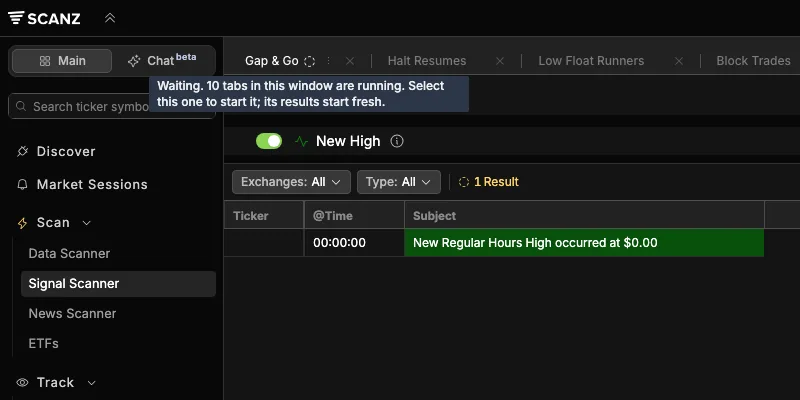
The first time the 10-tab limit stops a tab, Scanz points at it once so you know what the mark means.
Starting it again
Select the stopped tab and it starts again straight away. Its results start fresh from that moment: what happened while it was stopped isn’t filled in. If a scan has to keep collecting no matter what, turn it Always on. An Always on scan keeps collecting on Scanz’s servers even when its tab is stopped, so its tab isn’t marked.
Availability
- Web app: background tabs and all four stops are live.
- Desktop app: the 10-tab limit and the stops arrive in the desktop app’s next release.
- Plans: Starter and Pro alike. On Starter, the desktop app still runs one scan window at a time (see Desktop).
Tips
- Keep your running tabs few. Ten running tabs per window covers most setups. If you need more, put related tabs in a second window.
- Use Always on for the must-not-miss scan. Background tabs run only while Scanz is open and stop after 4 hours unopened. Always on keeps going 4 AM to 8 PM ET either way.
- Use Sound to hear a background tab. A scan’s sound keeps playing while you’re on another tab, so you’ll hear a hit without switching to it. See Scan notifications.
Troubleshooting
| Issue | Cause | Solution |
|---|---|---|
| A tab shows a mark and no new rows | It stopped (10-tab limit, 4 hours unopened, 8 PM or 4 AM ET) | Hover the mark for the reason; select the tab to start it again |
| A tab’s results start from when I came back | It had stopped, and starts fresh when selected | Turn the scan Always on if it must keep collecting |
| Tabs still reload when I switch | Background tabs aren’t on for your account yet | They’re in beta and being turned on gradually |
| Nothing was collected while Scanz was closed | Background tabs run only while the app is open | Use Always on |
Related
- Always on - keep a saved scan running while Scanz is closed
- Scan notifications - Sound, Push and Email for a scan’s matches
- Web browser and Desktop