Scan notifications Beta
Get a sound, a push notification or an email when a saved scan finds a match. Push and Email reach you even when Scanz is closed, with limits that keep a noisy scan from flooding you.
The Notify control on a scan decides how you hear about its matches: a Sound while Scanz is open, and on Pro a Push notification or an Email that reaches you even when Scanz is closed. Turn on Email for your pre-market gapper scan and you’ll know about the 6 AM mover before you’ve opened the app.
Beta: this feature is in beta and is being turned on for accounts gradually.
These notifications are for scans. To be told when one particular stock hits a price or condition, use Alerts.
Where to find it
Notify sits in the toolbar of:
- Signal scans in the Signal Scanner, next to Always on
- The Activity Log of a Data Scan in the Data Scanner, next to Always on
- News scans in the News Scanner
The button names what’s on, for example Notify · SOUND · PUSH, so a scan never notifies you without it showing. It reads Paused when Scanz has paused Push and Email for a scan that matched too fast (see Limits).
The three ways to be notified
| Sound | Push | ||
|---|---|---|---|
| When | While Scanz is open | Even when Scanz is closed | Even when Scanz is closed |
| Plan | Starter and Pro | Pro | Pro |
| Scans | Any open scan | Your saved scans | Your saved scans |
| Sent by | The app | Scanz’s servers | Scanz’s servers |
Sound
Pick a tone from the list in the Notify menu (Sound 1 to Sound 10; the play button next to each lets you hear it first). The sound plays when a new row arrives, including on background tabs you aren’t looking at. It never has limits.
Push
Turn on Push and the first time, your browser asks for permission to show notifications - allow it. Push is set up per browser and device: Preferences → Notifications → Enable Notifications shows whether it’s on for the one you’re using.
Push uses your browser’s web push. If a browser can’t do it, Scanz says so and suggests Chrome, Edge, Firefox or Safari on a desktop computer. On a phone, use Email for the scans you can’t afford to miss.
Turn on Email and matches are emailed to your Notification Email (set in Preferences → Notifications; the Notify menu shows it shortened, like t•••@scanz.com). If you haven’t set one, the Email row says “Set a notification email in Preferences”. Emails come from [email protected] - add it to your contacts so they don’t land in spam.
Push and Email turn Always on on
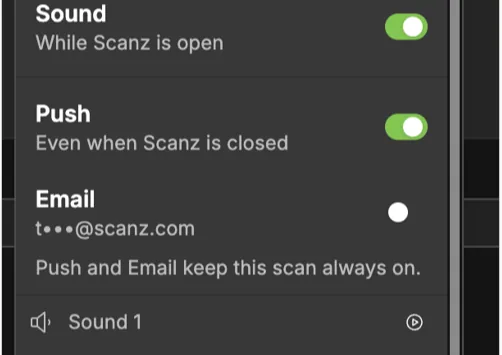
Push and Email are sent by Scanz’s servers, so the server has to be watching the scan. Turning either on for a Data Scan or a Signal also turns Always on on for it - the Notify menu says “Push and Email keep this scan always on.” - and the scan uses one of Pro’s 3 Always on slots.
News scans have no Always on chip. On a News scan the menu says “Scanz watches this scan while Push or Email is on.”, and while either is on the scan uses one of the same 3 slots. If all 3 are in use, Scanz asks which scan to turn off first (At the limit of 3).
Like Always on, Push and Email cover 4 AM to 8 PM ET for Data Scans and Signals.
Not available:
-
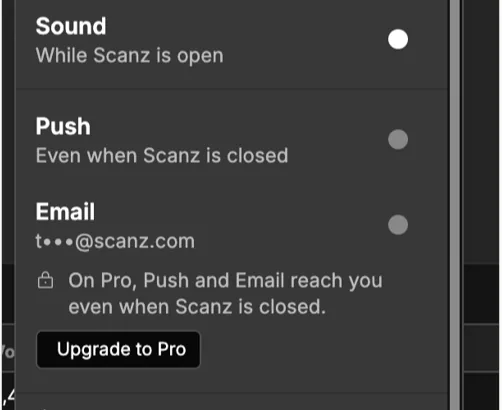
On Starter, Push and Email are locked: “On Pro, Push and Email reach you even when Scanz is closed.”, with Upgrade to Pro.
-
On a prebuilt scan: “Notifications are set per saved scan. Scan is a prebuilt, so make it yours first.” Click Customize this scan, save it, then turn them on.
-
On an unsaved scan: “Save the scan to get notified.”
What triggers a notification
- A notification is sent when a ticker enters the scan - the Notify menu says Fires on ENTERED.
- On a Data Scan’s Activity Log you can also turn on Also notify on LEFT (“When a stock stops matching”). It’s off by default.
- You get at most one message per ticker, per scan, every 15 minutes, so a stock flickering in and out doesn’t buzz you over and over.
Limits that protect your inbox
A loose scan can match hundreds of times a minute. These limits stop it from flooding you. They apply per scan, and the daily caps apply across all your scans:
| Push | ||
|---|---|---|
| Can’t be turned on when the scan matches | 5 or more a minute | 20 or more a minute |
| Pauses itself when the scan matches | 10 a minute | 40 a minute |
| Most per day, all your scans together | 100 emails | 1,000 pushes |
Sound is never limited.
Too fast to enable
For a scan that matches too often, the Push or Email switch is greyed out and reads Too fast to enable · limit 20/min (Push) or Too fast to enable · limit 5/min (Email), with “This scan matches too often to notify by Push and Email. Narrow it — tighten a filter or add one — and Push and Email unlock automatically.”
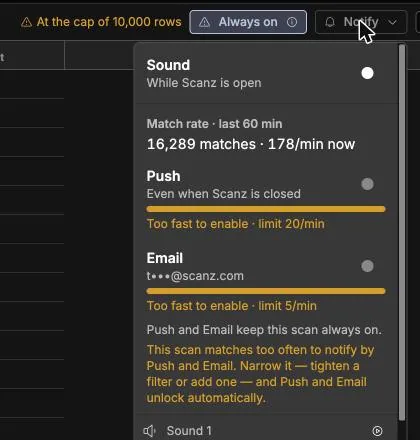
On an Always on scan, the top of the Notify menu shows Match rate · last 60 min - the matches in the last hour and the rate this minute - and each channel shows how close it is to its limit, for example Under the limit of 5/min · 0 of 100 today.
Paused
If a scan with Push or Email on starts matching faster than its pause rate, Scanz switches that channel off and tells you why, in the Notify menu: “Notifications paused. Scan matched [number] times in one minute at [time] ET, so Email was switched off.” Then:
- Turn back on - switches the paused channels back on, once the scan is under the limits again.
- Edit filters - closes the menu so you can tighten the scan first.
Daily cap
When you reach the day’s cap for a channel, its row reads, for example, 100 of 100 today · back tomorrow, and nothing more is sent on that channel until then.
See every scan that notifies you
Preferences → Notifications → Scan Notifications lists every scan that notifies you by Push or Email, open or closed, with its channels. Switch one off there; its sound stays as it is. With none, it says “No scan notifies you yet. Turn Push or Email on from a scan’s Notify button.”
Troubleshooting
| Issue | Cause | Solution |
|---|---|---|
| No Push or Email in Notify | Not on for your account yet | Push and Email are in beta and being turned on gradually |
| Push and Email show a lock | Starter plan | Upgrade to Pro |
| ”Too fast to enable” | The scan matches too often | Tighten a filter or add one; the switch unlocks by itself |
| Notify reads “Paused” | The scan went over its pause rate | Narrow the scan, then Turn back on |
| No push arrives | Browser permission blocked, or Push not on for this device | Allow notifications for app.scanz.com in your browser’s site settings; check Enable Notifications in Preferences |
| No email arrives | No Notification Email set, or it went to spam | Set it in Preferences → Notifications; add [email protected] to your contacts |
| Nothing overnight | Data Scans and Signals run 4 AM to 8 PM ET | That’s expected |
| ”Back tomorrow” | The day’s cap was reached | Narrow your noisiest scans, or rely on Sound and Push for them |
Related
- Always on - what keeps a scan running while Scanz is closed
- Background tabs - tabs that keep scanning while Scanz is open
- Alerts - notifications for a single stock’s price or condition
- Plans and limits